

Settings
Settings keeps its rows on the device, not in the project or your iCloud account, so a second device starts from its own values. A style a row has already written into a feature stays with that feature wherever the project opens.
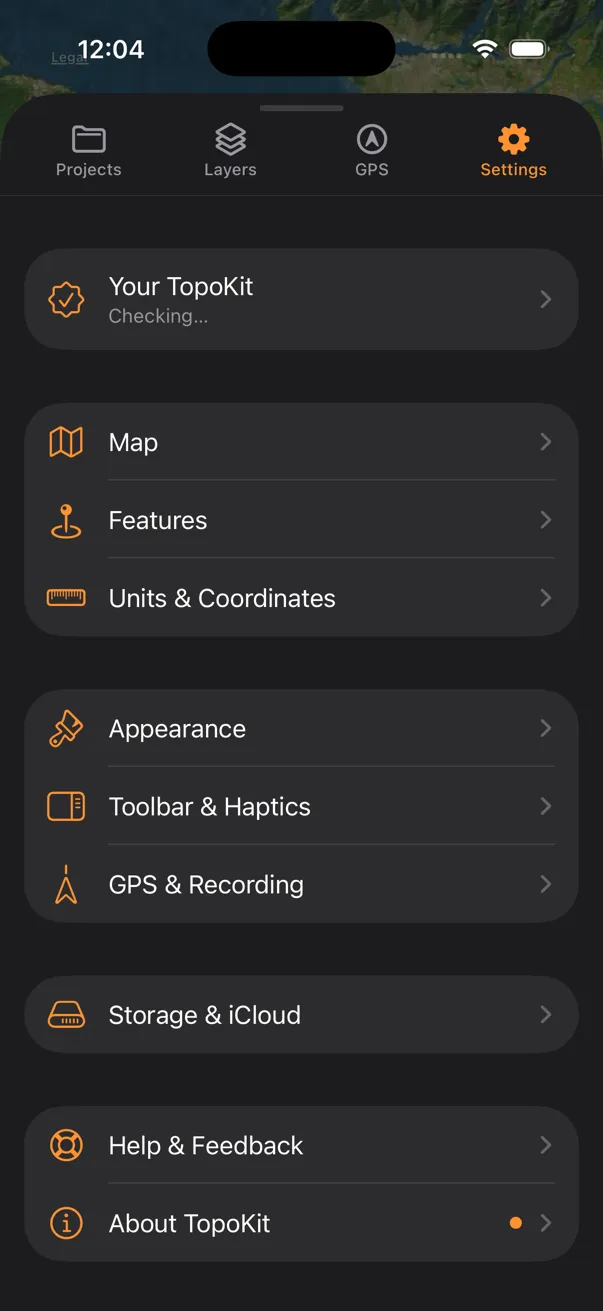
On iPhone, Settings is a tab. On Mac, Settings is a tab in the panel, and TopoKit → Settings… (Cmd-,) opens the same pages in a window of their own.
The Mac Settings window
Section titled “The Mac Settings window”The window has a toolbar button for each page under a shorter name: Map, Features, Units, Appearance, Storage, Help and About. It has no Your TopoKit button: Your TopoKit, Restore Purchases and Redeem Code head the About tab instead. The window opens on Map the first time and on the tab you used last after that.
Your TopoKit
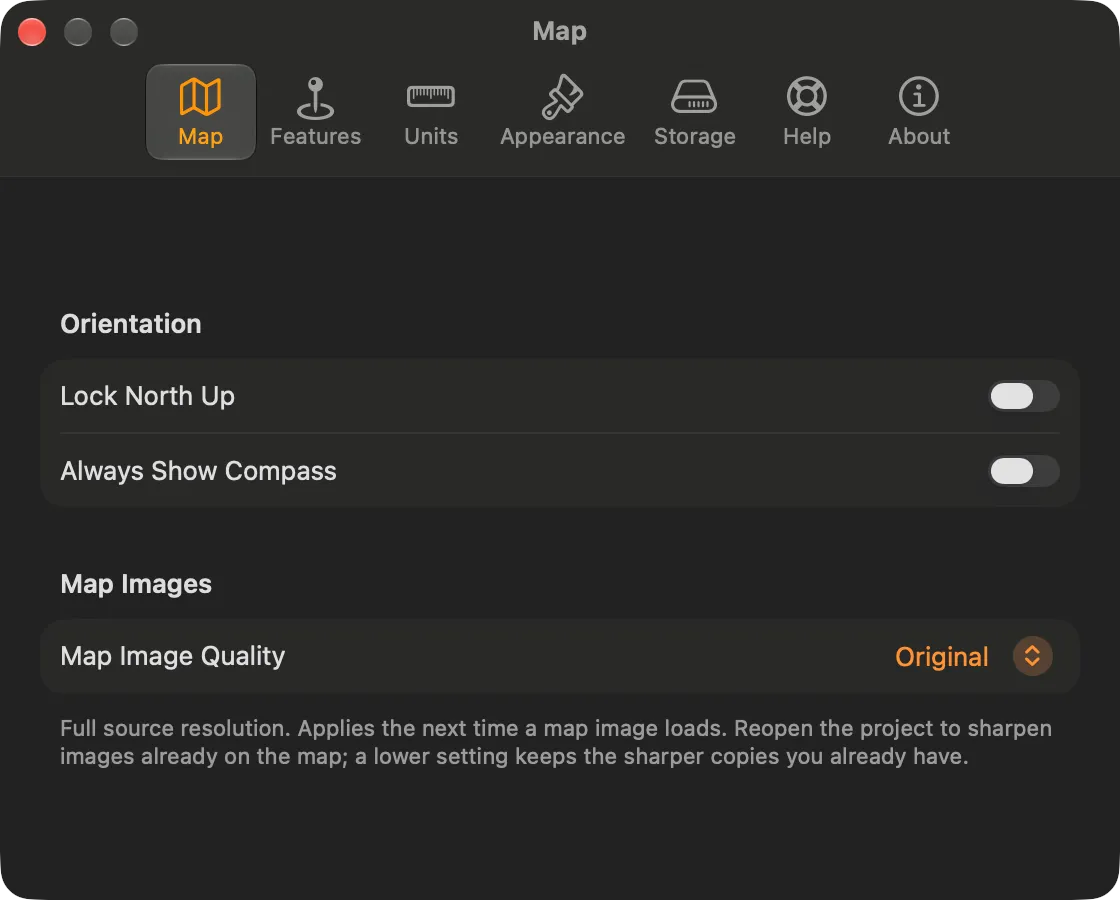
Section titled “Your TopoKit”The first row shows the state of your unlock under its title. Its page is where you unlock TopoKit, restore a purchase or redeem a code; The Your TopoKit page covers each.
Lock North Up stops the map rotating, and Always Show Compass keeps the compass on screen while north is up; the compass itself is in The interface.
- Keep Screen On: on iPhone, Always stops the screen locking while TopoKit is in front; switch to another app and it locks as usual. While Recording holds it on only while a track is recording or paused, so auto-pause does not let it lock. Off is the default; see Background recording and recovery.
- Map Image Quality: the longest side, in pixels, a raster is reprojected at; Original sets no cap, and High (8192px) is the default. It applies when a raster is reprojected, so a raster already reprojected keeps the quality it was made at, except a GeoPDF placed by four or more control points, until Clear Map Image Cache remakes it at the current setting. See Reprojection quality.
Features
Section titled “Features”The Default Style under Points, Lines and Polygons is copied onto each feature as you make it, so a later change leaves existing features as they are. Drawn lines and polygons start orange and dashed. The style sheets themselves are in Styling a feature.
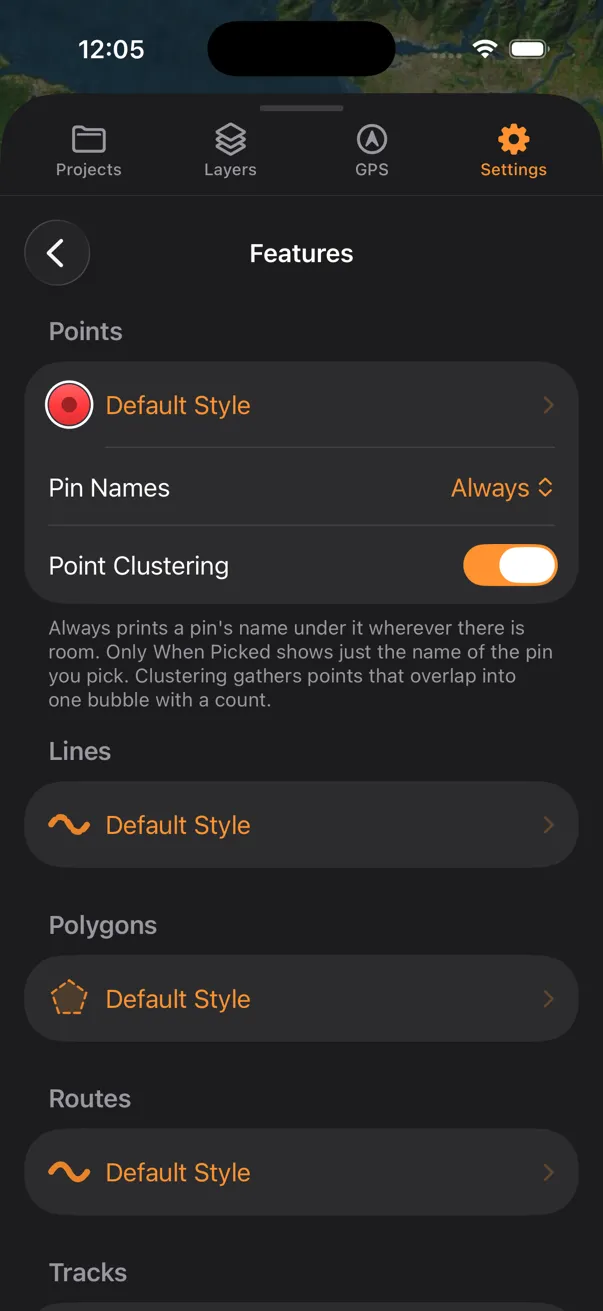
- Pin Names: which point names print under their pins. Always leaves a name out where pins crowd together; under either setting the picked pin’s name prints however crowded the map is. See Points on the map.
- Point Clustering: on unless you change it; pins that overlap merge into one bubble with a count. See Points on the map.
- Default Style under Routes: the style Add Route draws in and its save sheet starts from, kept apart from the Lines default. It is written into the route when you save it, so a later change leaves saved routes alone. See How the route is drawn.
- Default Style under Tracks: on iPhone, the line a recorded track is saved with. Randomize Colour swaps the style’s colour for one of twelve picked at random for each saved track; width, pattern and opacity still come from Default Style. See Saving a track.
- Vertex Style under Drawing: the dots drawn while you create and measure. Unlike the defaults above it is not saved into features; it is read every time you draw, so a change shows at once. The dots, and the faint dots between them, take the colour of the line or polygon being drawn until Inherit Colour from Feature is turned off in its sheet.
- Lines and Polygons under Imported Files: the style written onto lines and polygons brought in from a file. Imported points take the Default Style under Points. Both are written at import, so a later change leaves earlier imports alone.
Units & Coordinates
Section titled “Units & Coordinates”- Units: Metric or Imperial, taken from the device’s region the first time TopoKit opens. It sets the scale bar, the figures on the elevation profile and the contour unit a new basemap starts from; a basemap already built keeps its own. On iPhone, it also sets the speed, altitude and distance on the GPS tab. Switching it resets Distance and Area under Measuring Tools Start With to the new system’s defaults; Bearing keeps its value. See Units.
- Coordinate Format: how coordinates in TopoKit read and copy. Coordinates are stored as WGS84 latitude and longitude whatever this says, and the search bar accepts every format whatever this says; see Coordinate formats.
- Measuring Tools Start With: the Distance and Area units and the Bearing a measuring tool opens with; the tool card changes them for one measurement. On Mac, Bearing has no magnetic north, which needs a compass. See Bearing.
- Show Segment Lengths: on unless you change it; labels each segment with its length while you draw or edit a line or polygon. See Segment lengths.
Appearance
Section titled “Appearance”- Theme: applies to TopoKit’s own panels and controls, and does not change exports.
- Panel Style: Solid, the default, is opaque, so controls keep the same contrast over any map; Blur and Glass let the map show through.
- Solid Panel Background: shown under Blur or Glass. On iPhone, it keeps the sheet opaque while the smaller controls stay translucent. On Mac, it keeps the panel opaque while the smaller controls stay translucent.
- Panel Position: on Mac, which side of the window the panel is on, the left unless you change it. See Mac layout.
Toolbar & Haptics
Section titled “Toolbar & Haptics”This page is on iPhone only.
- Show Toolbar: whether the tool sidebar is drawn; turning it off hides the three rows below it too. Basemaps and the Apple Maps switch are on the sidebar only, so with it off neither can be reached. Holding the map still opens a card with Add Point as its pill, and its Start here menu holds Add Line, Add Polygon, Add Circle and Add Route (Holding a spot and the place card); Add Data opens from plus in the Layers tab.
- Position and Swipe to Dismiss: the sidebar is on the right unless you change it, and a sideways swipe toward that edge hides it while Swipe to Dismiss is on.
- Icon Size: draws each button 36, 44 or 52 points across, and the sidebar sizes itself to fit, so Small leaves the most map and Large is easiest to hit with gloves. Medium is the default.
- Haptic Feedback: on unless you change it; the one switch for every vibration in TopoKit, not only the sidebar’s.
GPS & Recording
Section titled “GPS & Recording”This page is on iPhone only.
- Recording Profile: how far you move and how accurate a fix must be before a recording keeps it. Balanced is the default; the numbers behind each profile are in Recording profiles.
- Auto-Pause When Stationary: off unless you change it; pauses a recording once the reported speed stays below 0.5 m/s for 30 seconds. See Auto-pause.
A recorded track’s look is set under Features.
Storage & iCloud
Section titled “Storage & iCloud”On This Device, or On This Mac on a Mac, lists five stores with their combined size beside the heading. Photos are saved in the project folder, so the total never counts them, and nothing in these stores is part of a project.
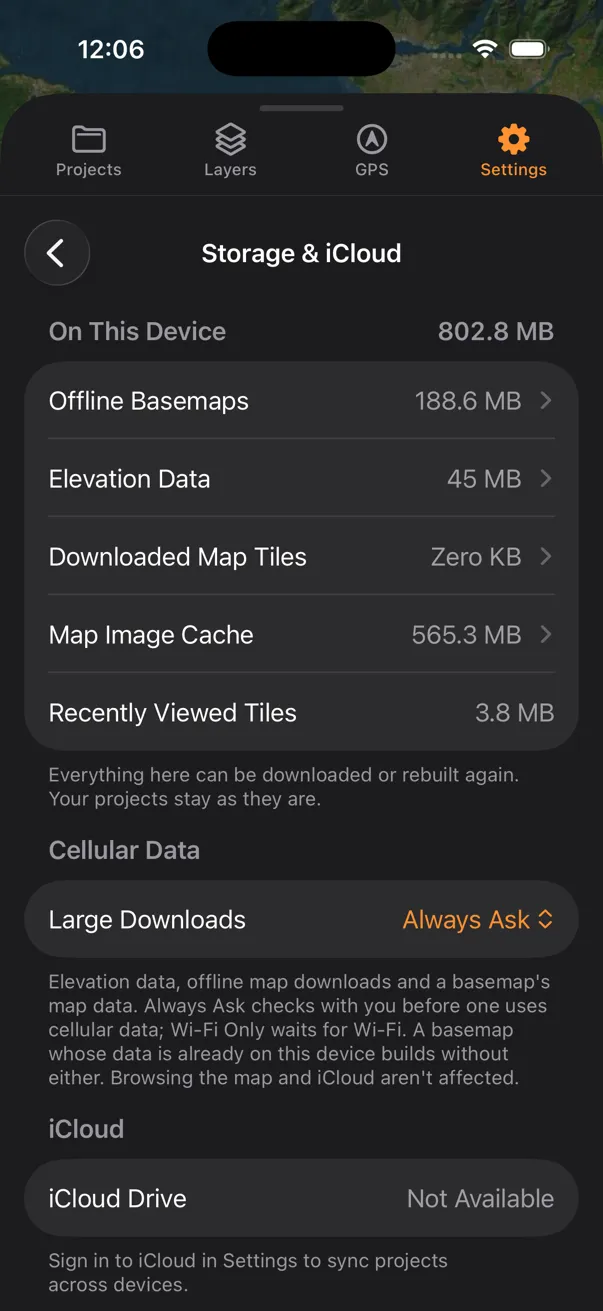
- Offline Basemaps: basemaps built on this device, with their working data. Delete Offline Basemaps removes this device’s copy only; the basemap layers stay in your projects, shown as not on this device until rebuilt. See Storage.
- Elevation Data: elevation tiles downloaded for lookups and profiles. Manage Tiles lists them with their sizes and deletes one at a time, and Clear Elevation Data deletes all of them; a deleted tile downloads again the next time a lookup, a profile or a basemap needs it, so rebuilding a basemap afterwards needs a connection. Basemaps already built keep their map. See Disk space.
- Downloaded Map Tiles: tile-layer tiles downloaded for offline use. Clear Downloaded Map Tiles deletes the tiles of every tile layer in every project, deleted layers included, and also the map tiles of every basemap built on this device, though their size is counted under Offline Basemaps, and empties Recently Viewed Tiles. Tile layers keep their place in your projects and need their tiles downloaded again; those basemaps stay in your projects, and TopoKit makes their tiles again from the elevation data when the project next opens (Storage). See Removing downloaded tiles.
- Map Image Cache: reprojected copies of your rasters. Clear Map Image Cache makes each raster reproject the next time it loads, at the current Map Image Quality, which takes a while for a large one. See Caching.
- Recently Viewed Tiles: map tiles loaded from the network as you browse, kept so the map does not fetch them again.
The rest of the page:
- Large Downloads, under Cellular Data: on iPhone, whether elevation data, offline map downloads and a basemap’s map data download over cellular data or a personal hotspot. Always Ask is the default; the question and its answers are in Downloads over cellular data.
- iCloud: with iCloud Drive connected, how much iCloud space your projects and map images take, and the projects folder’s path, which you can select and copy. Without it, iCloud Drive reads Not Available and the group prompts you to sign in to iCloud. See iCloud sync.
- Keep All Projects Offline: shown with iCloud Drive connected. Turning it on keeps a copy of every project in iCloud on this device; turning it off removes those copies. What each copy holds is in Offline pinning.
- Photo Size, under Photos: the longest side a photo is saved at, Medium (2048px) unless you change it. It applies when you add a photo, so photos already in a project keep their size. See Photos.
Help & Feedback
Section titled “Help & Feedback”User Manual opens this manual on the TopoKit website, Send Feedback starts an email to the developer, Rate TopoKit opens TopoKit’s review page in the App Store, and Replay Introduction runs the first-launch introduction again from its first page (The first launch). On Mac, the Help menu holds them, the manual as TopoKit Help, with What’s New and Licenses; see The menu bar.
Under Troubleshooting:
- Debug Mode: off unless you change it; shows a message the moment the app runs into an error and records detailed entries alongside the errors and warnings it keeps anyway. Errors that arrive while a message is open add to a count in it instead of opening messages of their own, and warnings are logged without one. Send to Developer on the message opens the same email as Send Logs to Developer without asking first.
- View Logs: the entries recorded since TopoKit launched, up to the latest 2,000. The saved log that Send Logs to Developer sends also holds earlier launches; it starts a new file at about 1 MB and keeps one earlier file, so a long session pushes its oldest entries out. Clear deletes both, and cannot be undone.
- Send Logs to Developer: asks first, because the log can include project names, file paths and coordinates from your work, then emails the log to the developer. The attached file opens with the app version and build, the system version, the iPhone model, the language and region, the device’s memory and its free disk space. On iPhone with no mail account set up, the share sheet opens instead. On Mac, the log opens in a new message in your mail app; with no mail app set up, a sharing menu offers where to send the file.
After a crash, TopoKit asks at the next launch whether to send the system’s crash report, whether or not Debug Mode is on; a force quit, a restart or a flat battery is not a crash and brings no question. Send Report… opens an email with the report’s text in the body, so you read all of it before it goes, and the system’s full report attached. The report holds the app and system versions, the device model and where the crash happened, not your projects, your locations or the log. A report you neither send nor decline is asked about again at the next launch. On iPhone, if the crash interrupted a recording, TopoKit asks this question and the one about the recovered track one at a time.
About TopoKit
Section titled “About TopoKit”What’s New holds the release notes. An orange dot marks notes you have not read, on this row and on the About TopoKit row in the Settings list, and closing the notes clears both. The page also shows the installed version, Licenses, which credits the code TopoKit uses and the sources of its elevation and basemap data (Credit and licences), and links to the Privacy Policy and Terms of Use.
Why does the Mac have fewer Settings pages? The Mac records no tracks and gives no haptic feedback, so GPS & Recording, Toolbar & Haptics and the Tracks group of Features are iPhone-only, as are Keep Screen On and Large Downloads; the Mac downloads over any connection, a phone’s hotspot included.