

Search and identify
Tap anything on the map, your own features or the marks, names and trails of a basemap you built, and a card says what it is.
What a tap finds
Section titled “What a tap finds”On Mac, a click does everything a tap does in this chapter.
Your own points, lines and polygons answer, recorded tracks, saved routes and circles included. A line answers a tap on or just beside its stroke; a polygon anywhere inside its outline except in a hole, and just outside its edge.
Only what the map is drawing answers. A hidden layer does not, nor a point that a raster or tile layer above it covers (Draw order).
On a basemap you built:
- Marks: every mark the map prints. A mark’s Elevation is in the basemap’s contour unit, not your Units setting.
- Road and river names: a printed name lights that road or river along its length.
- Area names: a printed park, lake, sea, glacier, island or forest name lights the whole area.
- Trails: trails, tracks, ski runs and lifts answer anywhere along their line where the basemap draws them, and so do footpaths, cycleways, steps, sidewalks and crossings close in.
While a drawing tool or Edit Vertices is running, a tap goes to the tool and opens no card. A tap on empty map, or starting a tool, closes the card.
Several things under one tap
Section titled “Several things under one tap”The card opens on the best answer and lists the rest under Also here. Your points come first, then basemap marks, your lines, your polygons, smallest first, and basemap lines.
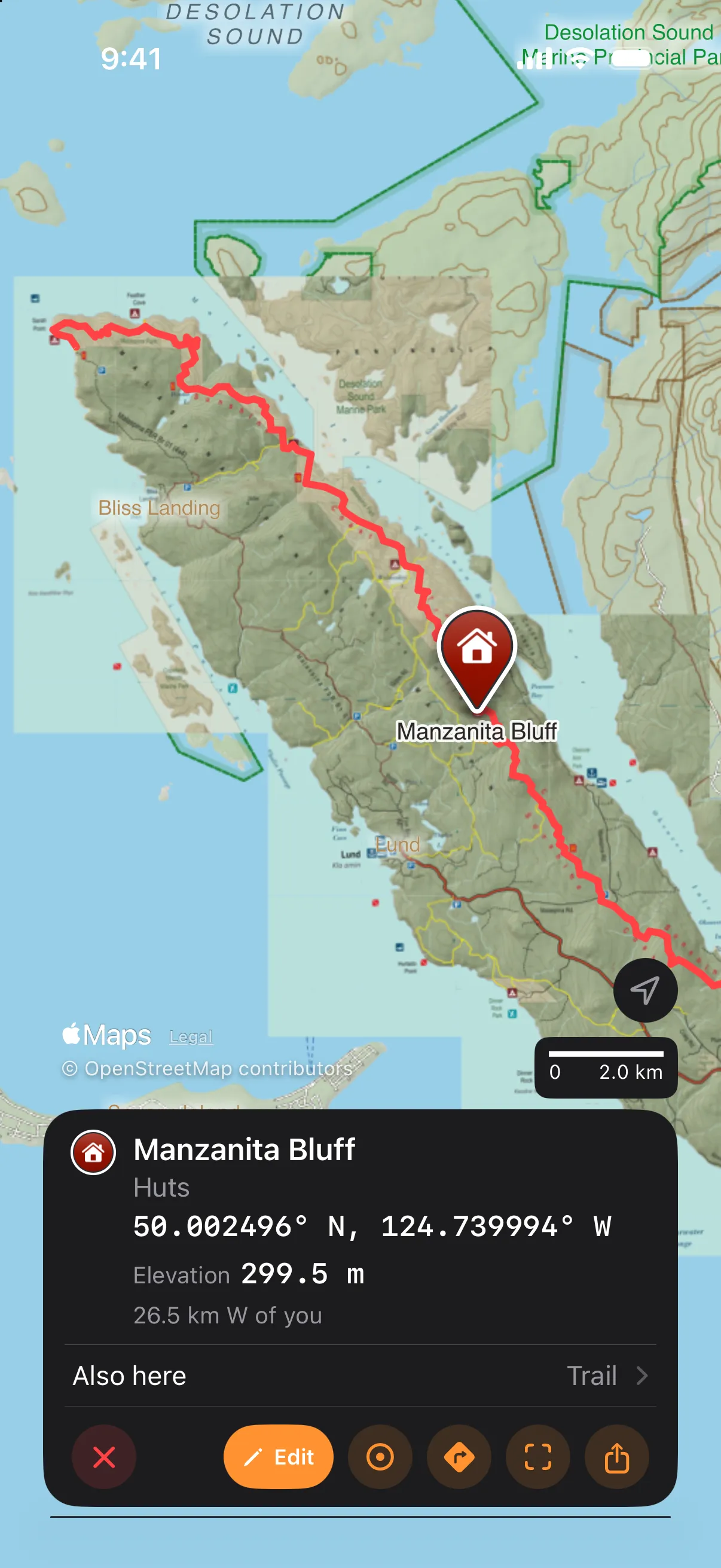
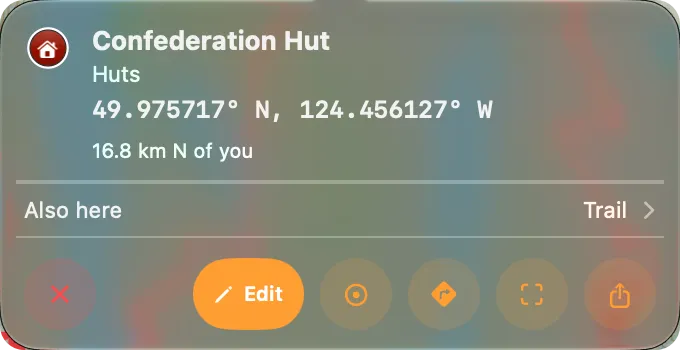
The card
Section titled “The card”On iPhone, the card opens at the bottom of the screen in place of the bottom sheet; when the card closes, the sheet returns lowered to the strip even if it was raised before. On Mac, the card is a popover on the pin, or at the spot you clicked for a line or an area.
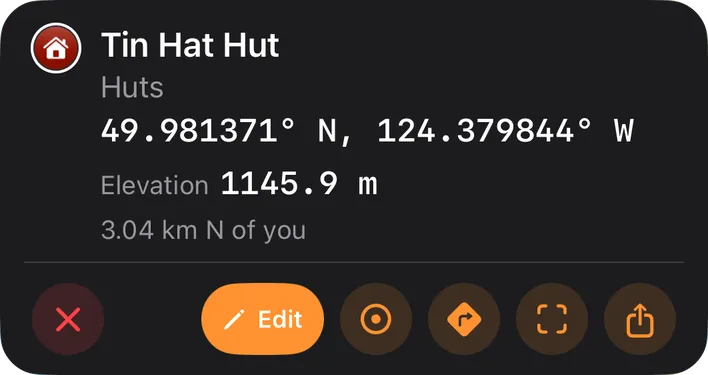
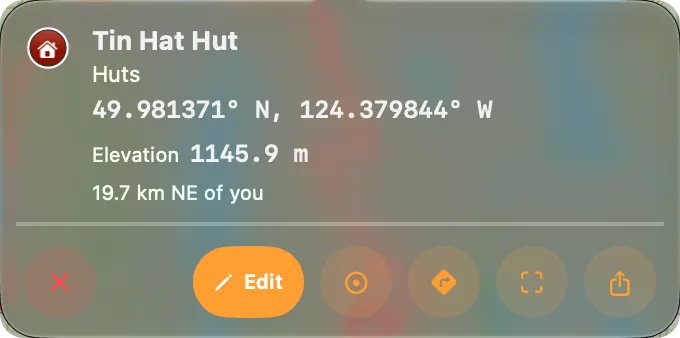
The outline stays while the card is open, and on a line while its elevation profile is open. A basemap trail lights as far as the map has loaded, then the whole feature once it has been read.
- Icon: the one your own feature’s row shows in the Layers tab; a pin in a circle for a place or a basemap thing; a ring with a dot on the place card.
- Name: a tap copies it.
- Line under the name: your feature’s folder path, top folder first; a basemap thing’s kind, such as “Footpath, unpaved”; or a place’s address, which copies.
- Coordinate: in your Coordinate Format (see Units & Coordinates); a tap copies it. On a line it is the point of the line nearest your tap.
- Cells: the feature’s figures, such as a line’s Length or a recorded track’s Gain and Avg speed; a polygon’s Area has its holes taken out. A tap copies a cell. Calculation methods says how the figures are computed.
- Distance from you: on a point, a mark, a place or the place card, the last line gives the distance and true bearing from your last known position.
- Your own features also show their description, cut at five lines with a tap copying all of it, and an imported HTML description as plain text without its links. Photos (N) holds thumbnails that open the photo viewer. Details, behind a row that counts them, lists the attributes alphabetically, a tap copying each value, and leaves out the keys TopoKit fills itself, among them
distance, any key startingtrack_orgps, and a point’selevation.
The card’s buttons
Section titled “The card’s buttons”On iPhone the round buttons carry no text; the names below are their VoiceOver labels, and on Mac their tooltips.
- The pill: Edit on your own feature opens its editor. Save on a basemap line or area keeps it in the project. Add Point on a mark, a place or a held spot opens the point editor there, with a mark’s or a place’s name and a peak’s height filled in (see Adding a point).
- Place: on a point, a mark or a place, opens the place card for the ground under it, with the thing you came from under Also here.
- Route here (Route to Here on Mac): starts Add Route with this spot as the destination (see Starting from a point or a place).
- Zoom to: frames your feature or the whole lit trail or park, and centres a mark or a place.
- Elevation profile: on any line, a basemap trail included, opens the elevation profile for the whole line. On a named trail it waits until the whole trail has been read.
- Share: on a point, a mark, a place or a spot, Coordinates shares the name and coordinate as text, and on Mac also copies them. The file formats share the feature, or a mark, a place or a spot as one point under the card’s name, with no GPX for an area (see Exporting and sharing). A basemap trail or park offers files once its whole shape has been read, and Coordinates until then.
Edit, Add Point, Save, Route here, Elevation profile, the tools under Start here and the place card’s terrain download ask to unlock TopoKit (see What asks you to unlock).
Saving a trail or a park
Section titled “Saving a trail or a park”- Tap the trail or ski run, or the printed name of the road, river or park.
- Wait for Save to brighten.
- Tap Save.
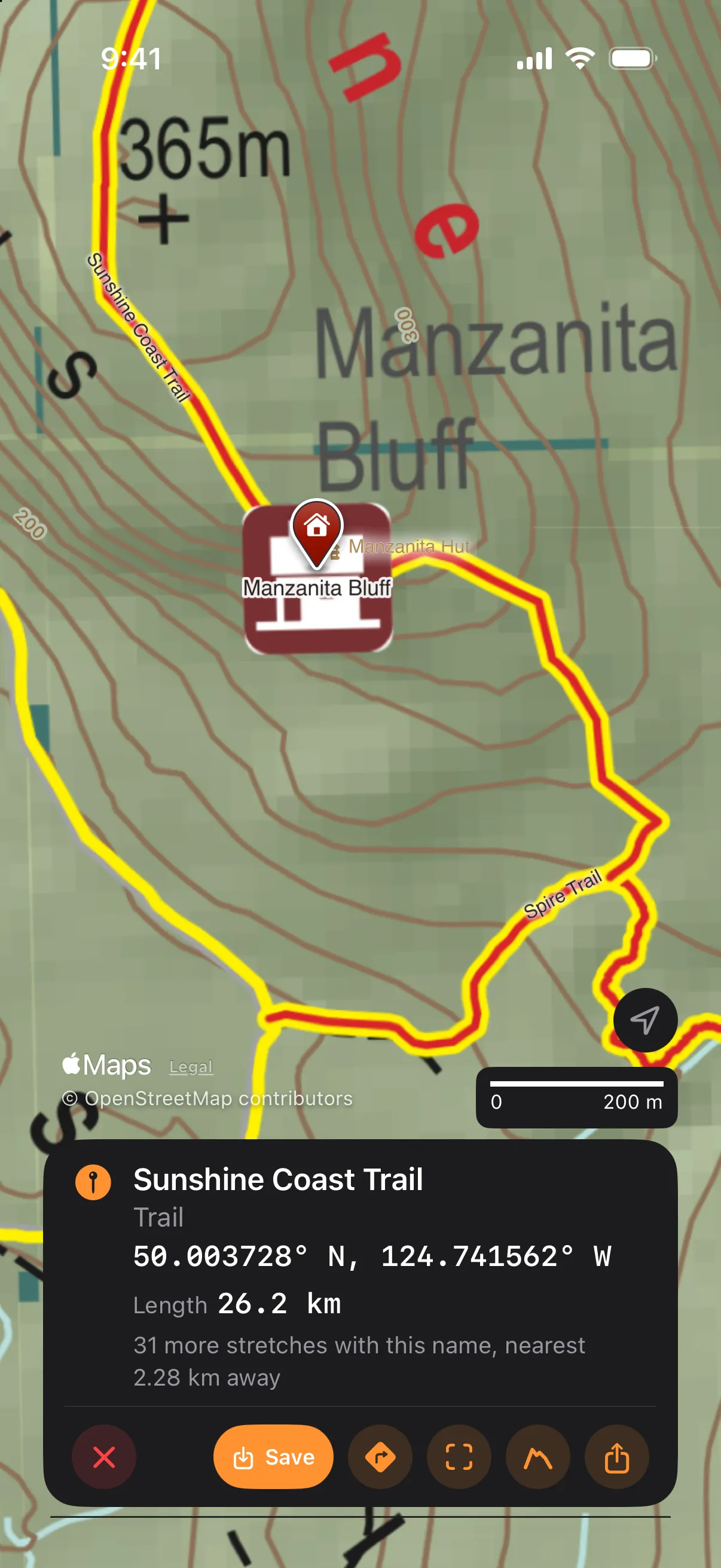
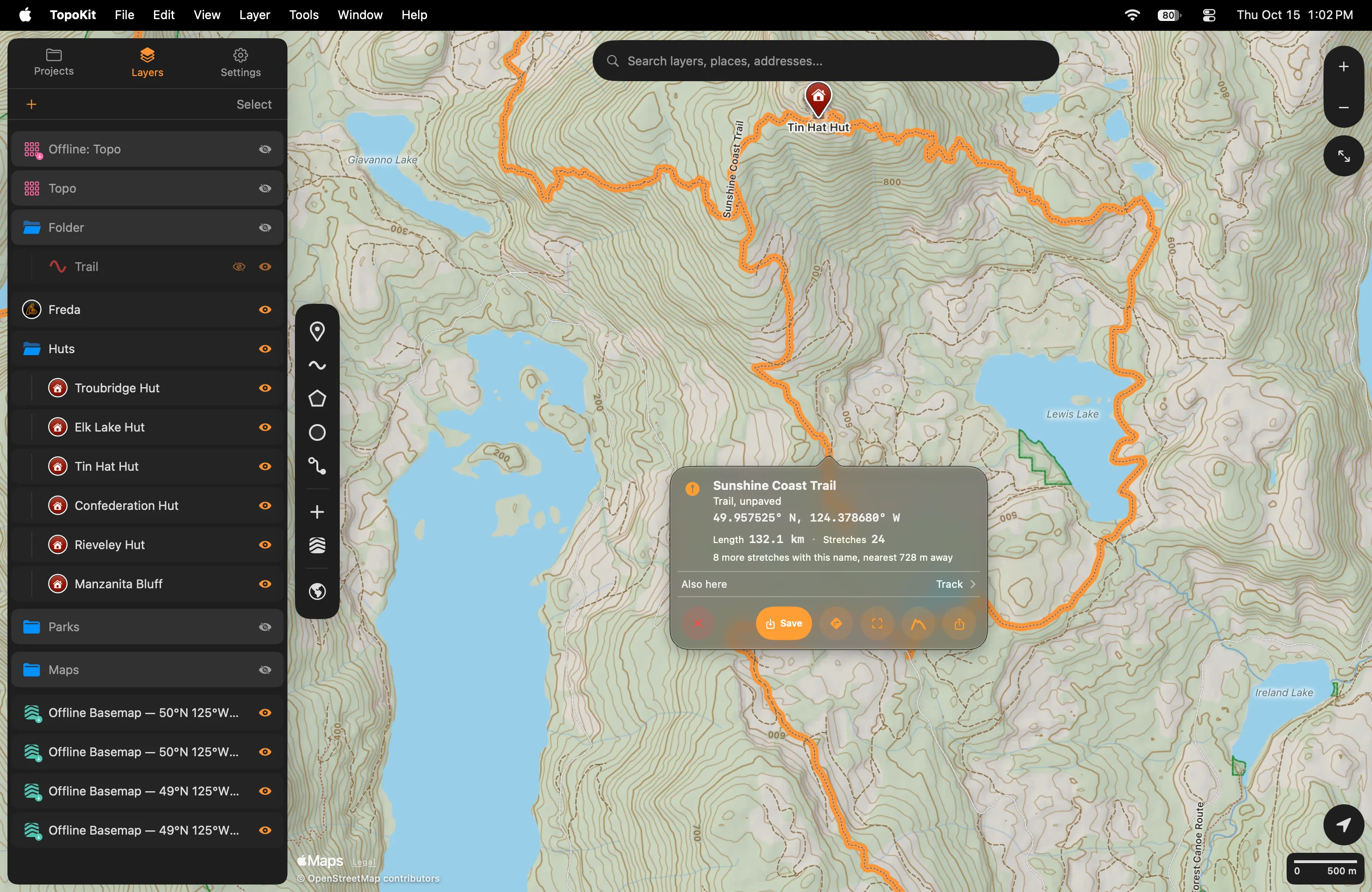
The feature goes into a folder named From the map, made at the top of the Layers tab the first time, in your Default Style for lines or polygons (see Features).
Save stays dimmed while TopoKit reads the whole feature from the basemap data on the device, across every basemap shown on the map. A named line is read as the stretch you tapped plus every stretch of the same name that joins it within 250 m; the card then shows Length, Stretches when there is more than one, and a line such as “2 more stretches with this name, nearest 3.20 km away” for those left out. A named area is read with any same-named area that touches it. An unnamed way, or a named line the basemap data cannot find under its name, saves only the stretch lit on the map; with no lit stretch either, Save stays dimmed.
Holding a spot and the place card
Section titled “Holding a spot and the place card”On iPhone, hold the map still for half a second. A ring with a dot marks the spot and its place card opens; nothing is added to the project. A hold does nothing while a tool is running. Holding a pin or a trail still opens the place card, with the pin or trail under Also here.
On Mac, right-click bare ground and choose Info.
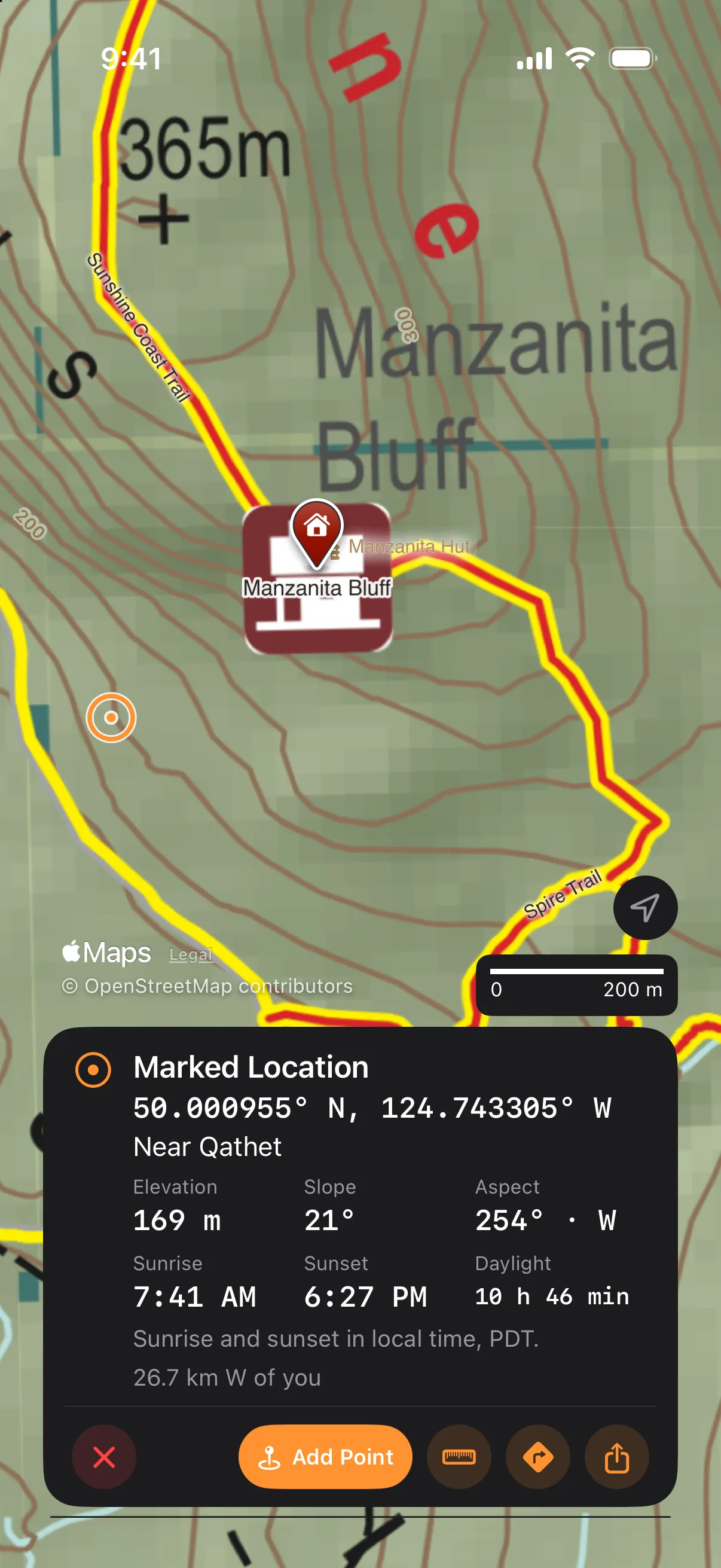
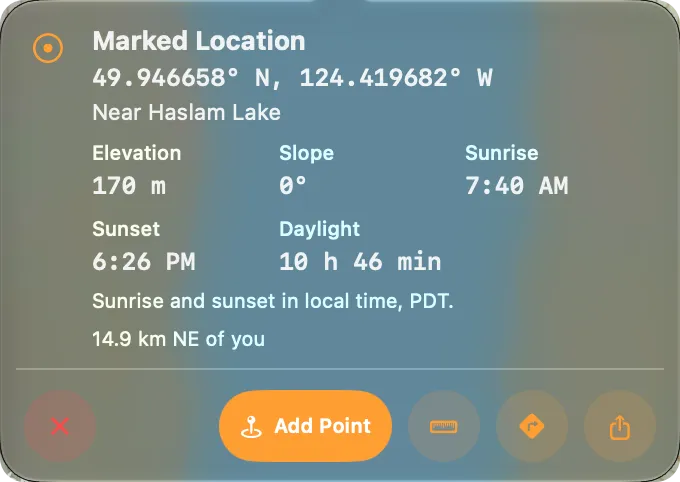
The “Near {place}” line under the coordinate needs Apple’s place look-up, so it appears only with a connection.
When the elevation tile for the spot is on the device, the card leads with Elevation, Slope and Aspect; without it, the card offers to download that tile (see Height, slope and aspect at a spot).
Sunrise, Sunset and Daylight are for today, and each appears only when the sun rises or sets there that day.
Start here starts a line, a polygon, a circle or a route with the spot as its first point, or a circle’s centre. It needs an open project; without one, choosing a tool closes the card and starts nothing. Add Point opens the point editor at the spot with no name filled in.
Right-clicking the map
Section titled “Right-clicking the map”Right-click the map, or Control-click it. Right-clicking a cluster bubble spreads or lists its points, as a click does, with no menu. While a tool is running there is no menu.
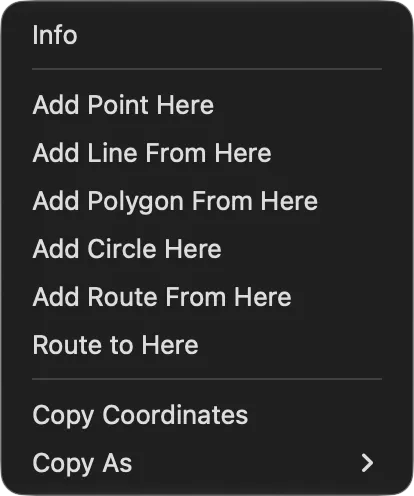
Without a project the menu holds only Info, Copy Coordinates and Copy As.
On bare ground, Info opens the place card and Add Point Here the point editor. Add Line From Here, Add Polygon From Here and Add Route From Here start that tool with the spot as its first point, and Add Circle Here with the spot as the centre. Copy Coordinates copies the spot in your Coordinate Format, and Copy As in any of the four formats without changing the setting.
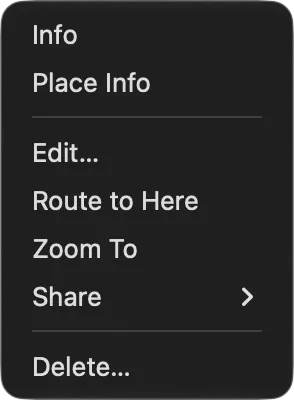
On a feature, a mark or a basemap line, the menu holds that thing’s card actions, with Info for the card itself and Place Info for Place. Your own feature also gets Delete…, which asks first; Undo brings it back.
Search
Section titled “Search”On Mac, the search bar is at the top of the map, and Edit → Search (Cmd-F) puts the cursor in it. On iPhone, the search bar is at the top of the Layers tab. It works with or without a project open.
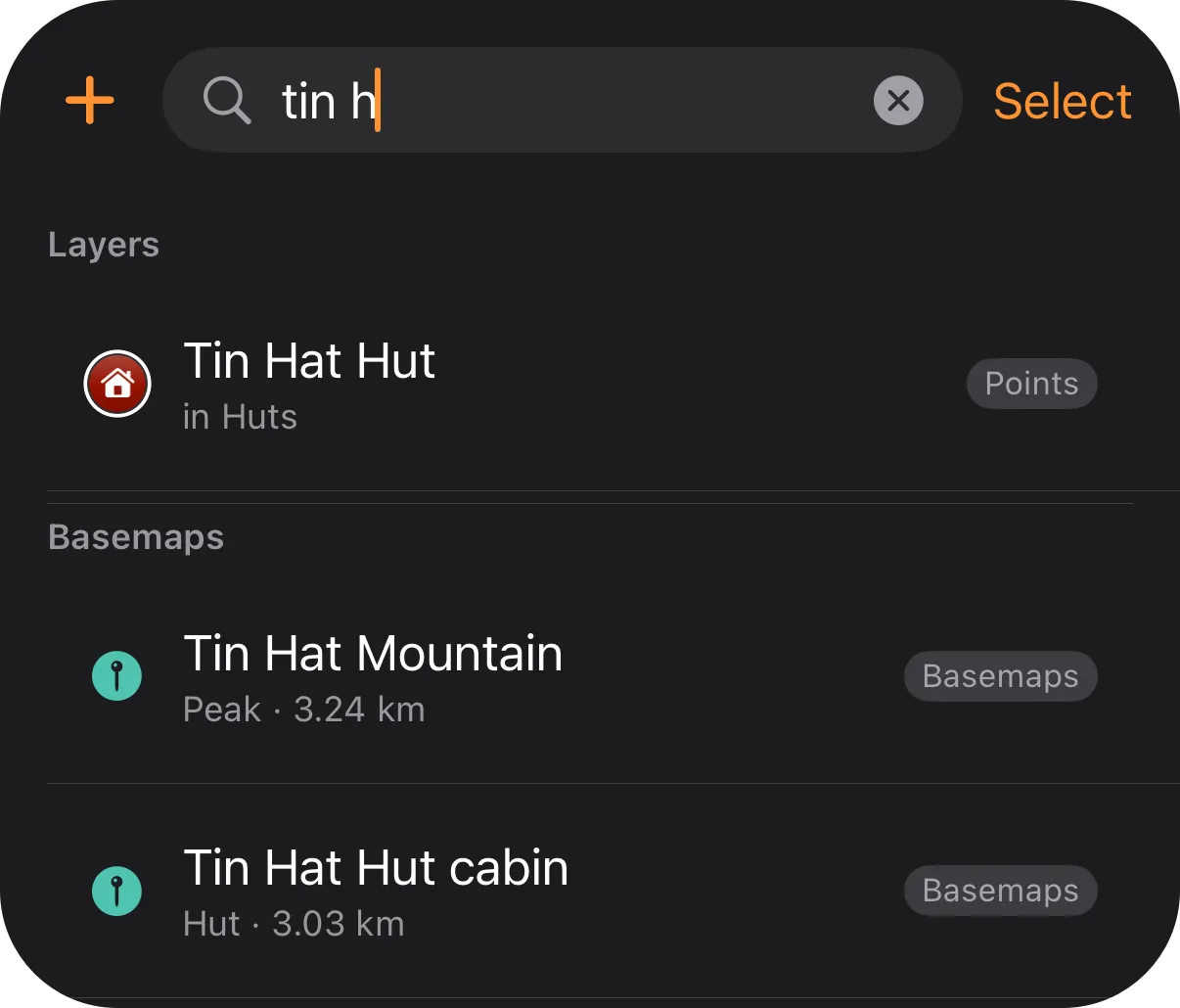
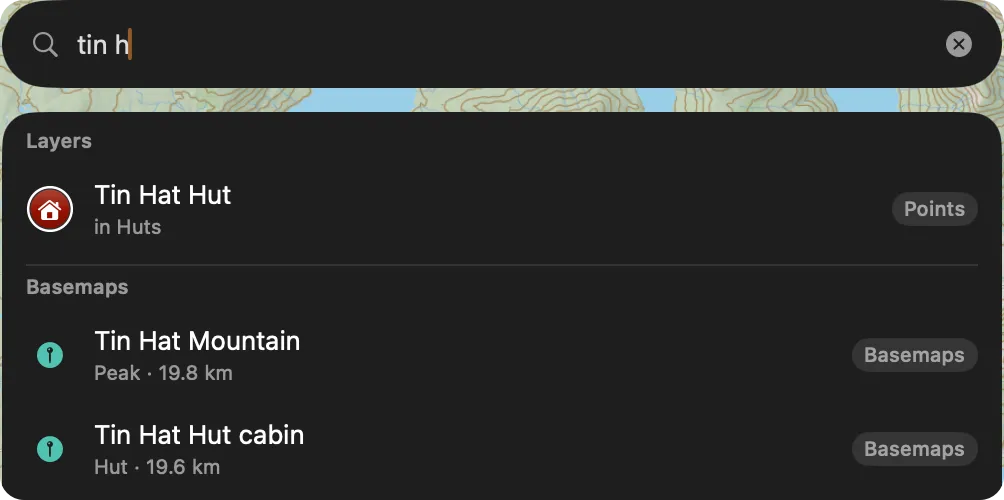
Results come in up to four sections, in this order: Coordinate, Layers, Basemaps and Places. Picking a row frames it, opens its card as a tap would, and clears the search. A raster opens a card with its name; a folder or a tile layer has no single spot, so nothing opens. A place is framed at the extent Apple gives, so a lake is framed whole, never closer than about 1 km.
What each section finds
Section titled “What each section finds”| Section | What it searches | Order and limit |
|---|---|---|
| Coordinate | Text that reads as a coordinate in any of the four formats. The one row, Go to coordinate, opens the place card. Works offline. | Always first. |
| Layers | Names of folders, features, rasters and tile layers, anywhere in the name, ignoring case and accents. Also the parent folder’s name, attribute keys and values, a point’s coordinate and a tile layer’s URL. | Names that start with the text first. Up to 100 rows. |
| Basemaps | Names the basemaps shown on the map print, from the data on the device. Needs two letters or digits, so 19 finds Highway 19; every typed word must start a word of the name, so tin h finds Tin Hat Mountain. Works offline. | Up to 20 rows. |
| Places | Apple’s suggestions for addresses, points of interest and natural features, favouring the part of the world the map shows. Needs a connection. | Up to eight rows. |
A query that is exactly a category word, such as points, lines, area, rasters, tiles or folders, lists every layer of that kind under Layers instead of matching names; vectors lists points, lines and polygons together.
Coordinate formats
Section titled “Coordinate formats”| Format | Example | What it reads |
|---|---|---|
| DD | 49.976361, -124.149780 | A comma, a semicolon or a space between the values. Hemisphere letters are optional, before or after each number; label the first value E or W and it is read as longitude first. |
| DMS | 49°58'35"N 124°08'59"W | Hemisphere letter required on both. Degree mark ° or d and minute mark ', ′ or m required; seconds mark ", ″ or s optional. Capital D, M, S and bare numbers are not read. |
| DDM | 49°58.5817'N 124°08.9868'W | Degree mark and hemisphere letter required; minute mark optional. |
| UTM | 10U 417559 5536636 | Zones 1–60, a six-digit easting, a northing of five to eight digits. N and S are the hemisphere, so a position in latitude band S (32° to 40° N) takes N; any other letter is a band, C to M south and P to X north. |
Decimals take a point in every format. A comma always separates latitude from longitude, so 49,5 8,2 gives no coordinate row and 48,2 is read as latitude 48, longitude 2.
When TopoKit writes UTM it uses the plain 6° zone, without the Norway and Svalbard exceptions, and the hemisphere letter: 10N 417559E 5536636N. Every coordinate TopoKit writes, in any of the four formats, pastes back into search and is read.
Why did the card close when I zoomed out? A peak’s, a hut’s or a town’s card closes when the map stops printing its mark at that zoom. A park’s or a trail’s card stays, because its outline is still on the map.