

Routes
Add Route builds a route through up to 14 stops for driving, walking or cycling. TopoKit asks Apple Maps for the road between each pair of neighbouring stops, draws each leg on the map as Apple answers, and saves the finished route into your project as a line.
Adding stops
Section titled “Adding stops”Add Route in the tool sidebar starts the tool. On Mac, Tools → Add Route (Cmd-5) does the same. The button is dimmed until a project is open, and so is the menu item. Routes are part of the full app; see Your TopoKit.
The tool card opens with one empty field reading Start. To fill it:
- Tap the map. Each tap adds a stop at the end of the list.
- Use your location. My Location at the right end of the empty field adds where you are as a stop named “My Location”. The stop is your position at the moment you add it; it does not follow you. The button shows while the field is empty, the route has fewer than 14 stops, location access is granted and there is a fix.
- Type a coordinate. Type it into the empty field and pick its row. Any of the four formats works, whatever the coordinate format is set to.
- Search. Type a name into the empty field. It searches what the search bar searches. A point, a basemap name, a place or a coordinate becomes a stop; picking a line, polygon, folder, raster or tile layer adds nothing.
A stop picked from search, a typed coordinate or My Location moves the map to frame the stops. A route holds up to 14 stops, start and end included; at 14 the field reads “14 stops is the most” and a map tap adds nothing unless a stop is selected, which it moves. Each stop is a dot on the map, and a ring marks the stop just added, selected or dragged.
A stop tapped onto the map is named from Apple’s place lookup, for example “St Mary’s Ln”; until the lookup answers, or when it finds nothing, the field shows its coordinates.
Starting from a point or a place
Section titled “Starting from a point or a place”- A card on the map: Route here (Route to Here on Mac) on a point’s, a place’s or a search result’s card makes that spot the last stop. With a location fix, “My Location” becomes the start and TopoKit asks for the route at once. Without one, the spot is the only stop, and your first tap, search pick or My Location becomes the start. This works with no project open; saving still needs one.
- A point or multipoint row in the Layers tab: On iPhone, Layer options → Route to Here. On Mac, right-click the row, or select it and choose Layer → Route to Here. The point becomes the only stop even with a fix, and the next stop you add becomes the start. On a multipoint row the route ends at its first point.
- A spot with nothing on it: the Start here menu on the card for a held spot or a typed coordinate starts a route from that spot. On Mac, the map’s right-click menu also offers Add Route From Here and Route to Here. A route started this way needs a project open; Route here (Route to Here on Mac) on the same card does not.
The tool card
Section titled “The tool card”From two stops, the totals line under the fields holds the travel-mode menu, the distance and travel time, a count of straight legs when there are any, Undo, Redo once something has been undone, and Reverse.
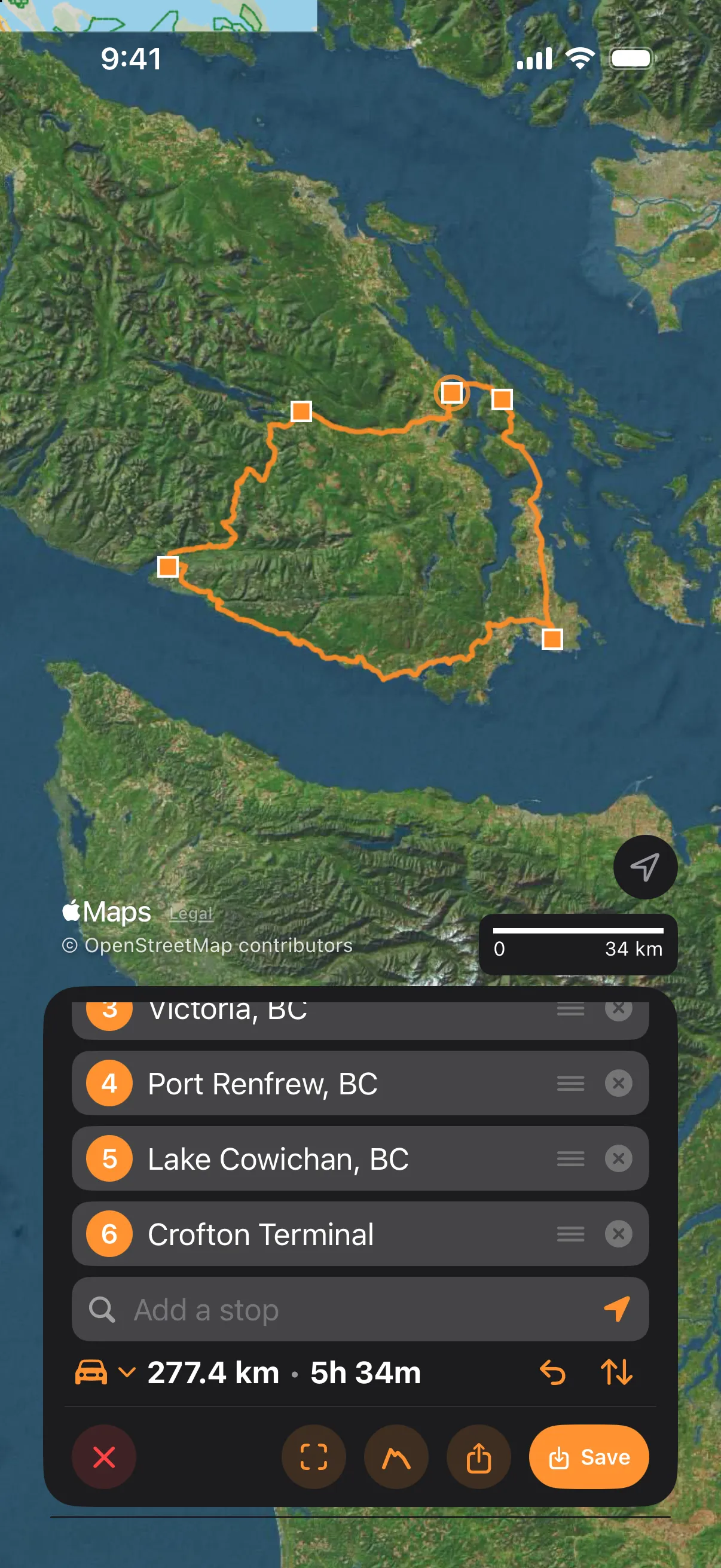
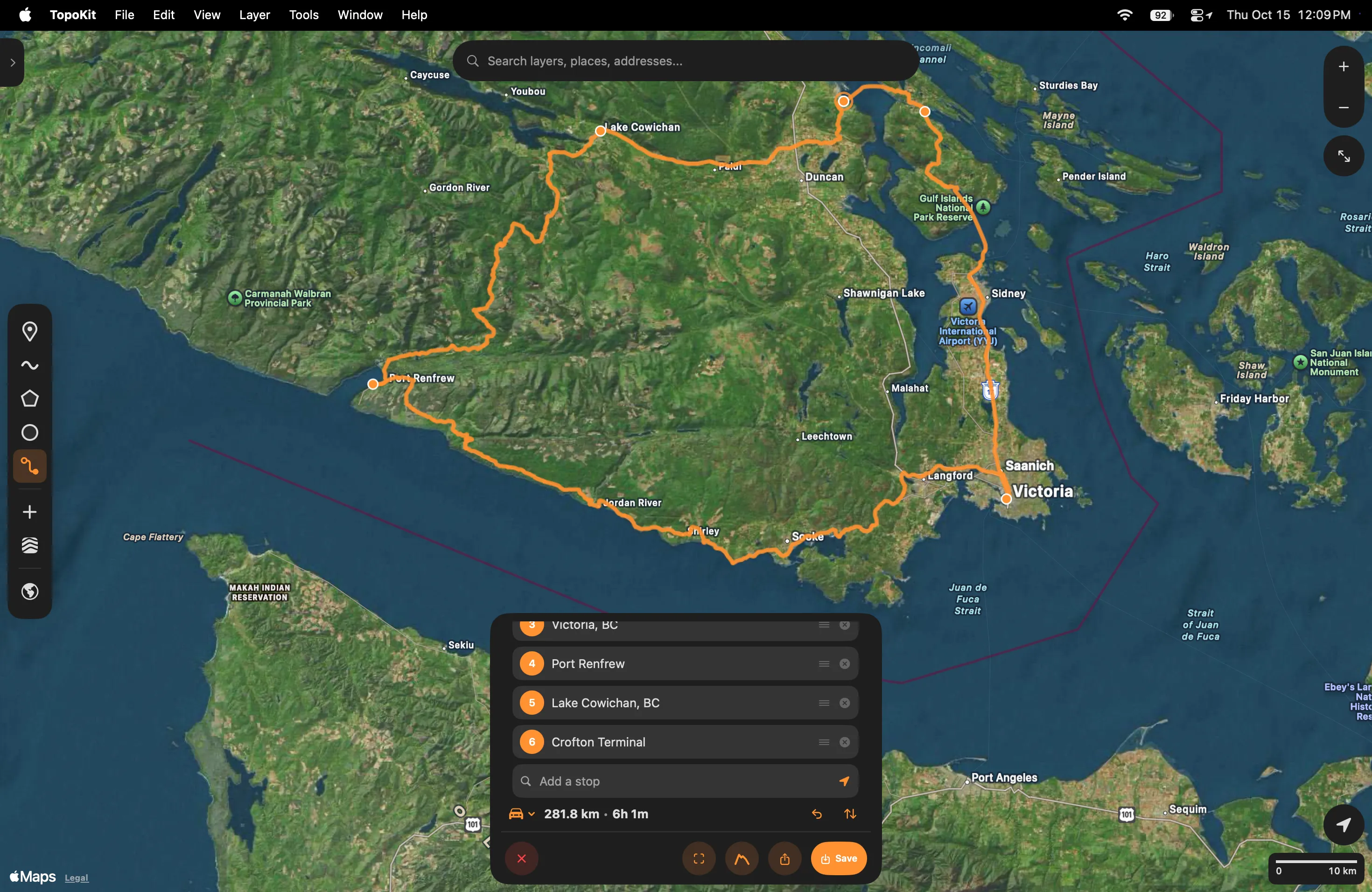
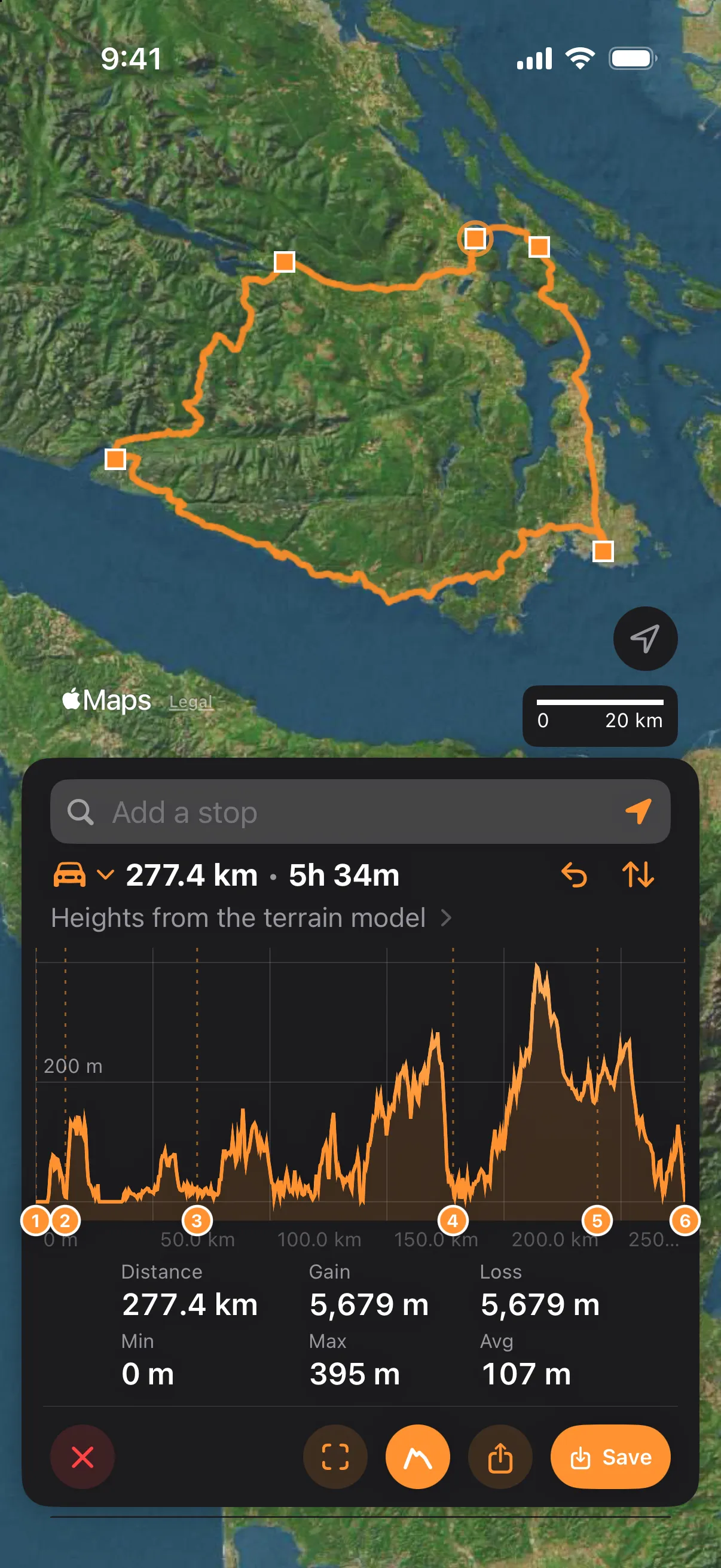
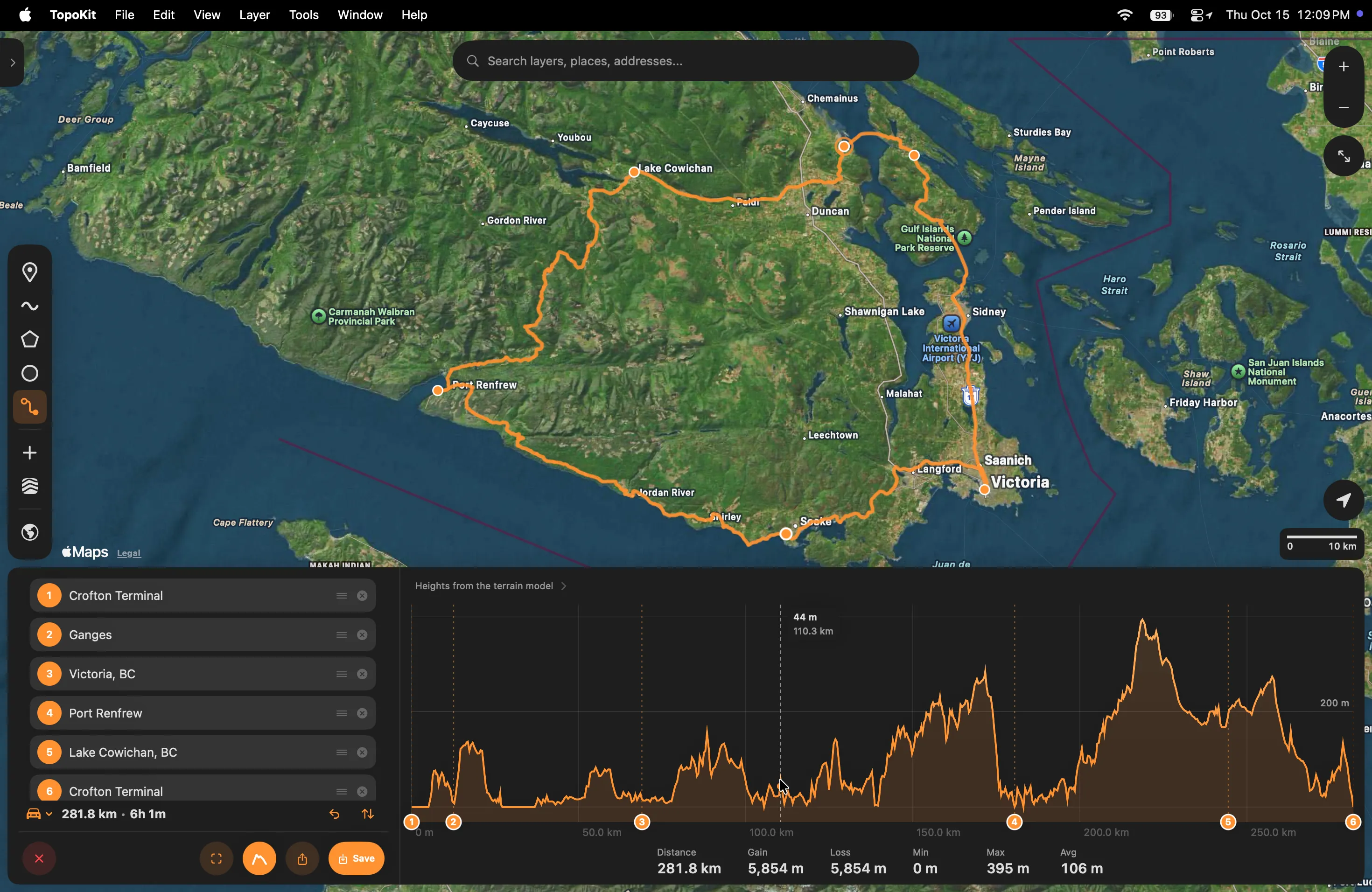
The distance is measured along the line drawn on the map, so it matches the elevation profile; the travel time is Apple’s. Measuring covers the units, and Elevation profile opens the elevation profile of the route being drawn. Zoom to frames the whole route.
Travel modes
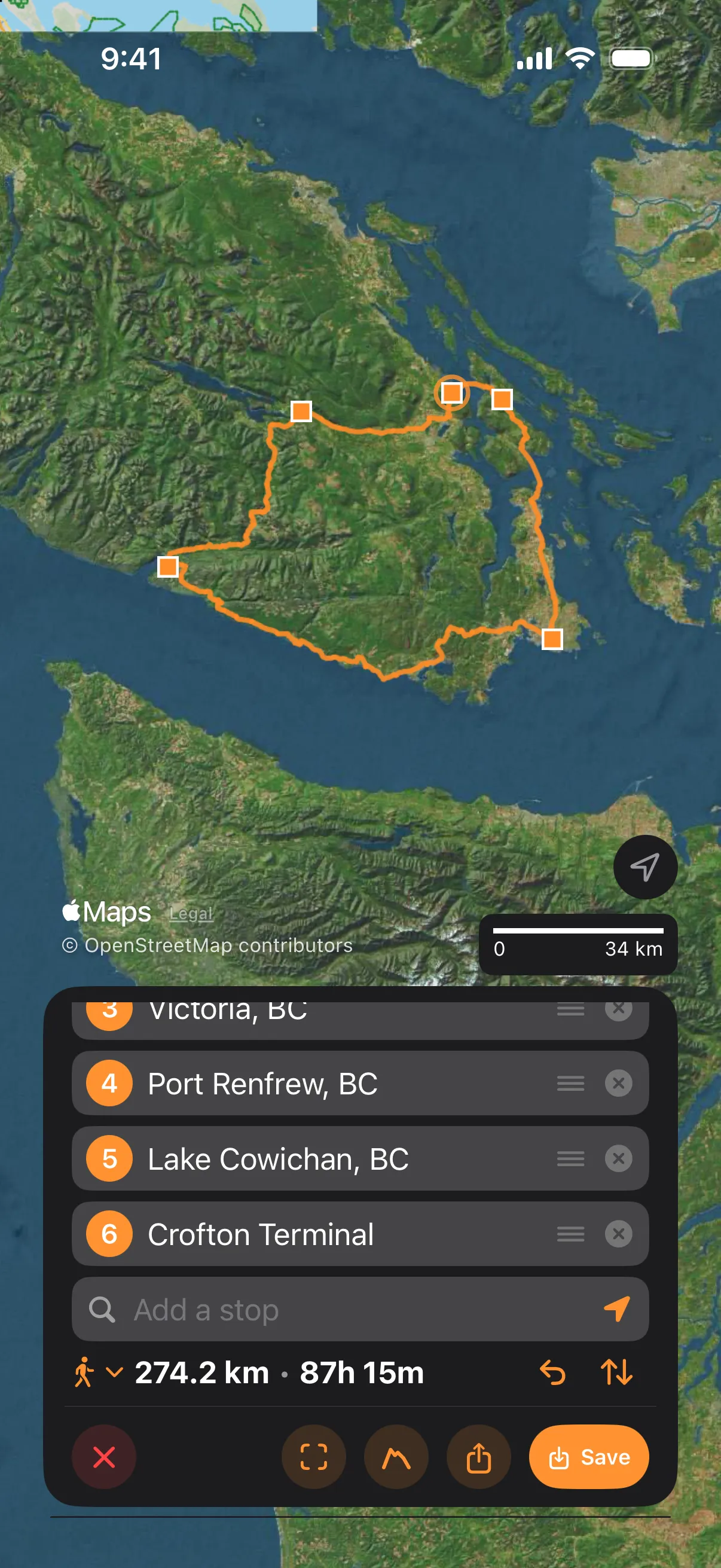
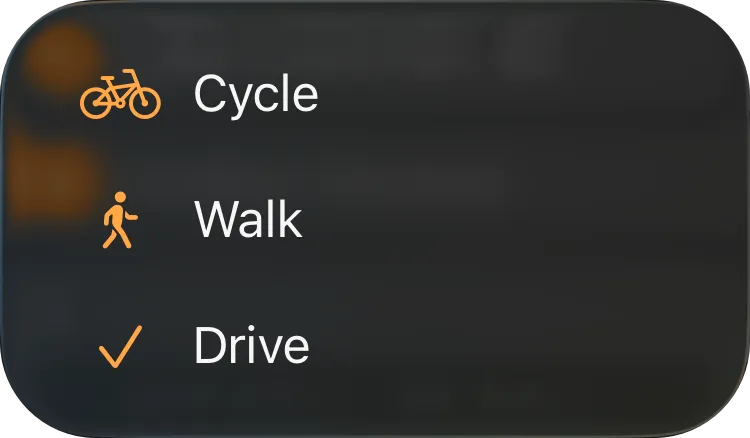
Section titled “Travel modes”The mode menu is on the card before the first stop. TopoKit starts in Drive and remembers the last mode chosen across launches. Every leg is asked for in the chosen mode, so the same stops give a different road and a different figure in each: the loop round southern Vancouver Island above comes back at about 280 km and 6 hours in Drive, 290 km and 18 hours in Cycle, and 275 km and 88 hours in Walk. There is no transit and no off-trail routing.
Changing a route
Section titled “Changing a route”- Move a stop. Drag its dot; only the legs that meet it are asked for again. Or tap its field or its dot to select it: the next map tap or search pick moves that stop instead of adding one. Tap the field or the dot again, or the empty field, to let it go. My Location adds a new stop, even while a stop is selected.
- Remove a stop. Tap the ✕ at the end of its field; one leg then joins the stops either side. A stop cannot be removed from the map.
- Reorder stops. Drag a field up or down the list. To put a stop between two others, add it and drag its field into place; a route has no dots between stops to pull one from.
- Reverse the route. Tap Reverse; every leg is asked for again in the new direction.
- Change the mode. Choose another mode from the menu. Answers already received are kept, so switching back restores them without asking Apple again.
- Undo a change. Tap Undo on the totals line to take back any change in this list. See While a tool is open.
- Start over. Tap ✕ on the card: the tool closes and discards the stops without asking. On Mac,
Escasks “Discard the stops you’ve placed?” first.
The routing engine
Section titled “The routing engine”Directions come from Apple Maps, so every request goes to Apple’s servers and a route cannot be computed offline. A saved route works offline like any other line; see Before a trip.
Each leg is a separate request: a route through five stops makes four.
A leg is drawn as a dashed straight line while it is being asked for, while it waits for a retry, and when Apple has no road for it. A waiting leg is asked again only when you tap Retry: TopoKit does not retry on its own when the connection returns. A leg with no road counts as answered: it adds its length to the distance and nothing to the travel time. A leg still being asked for or waiting keeps Elevation profile, Share and Save dimmed.
How the route is drawn
Section titled “How the route is drawn”Stops draw in Vertex Style and legs in Default Style under Routes, both in Settings → Features. With a dashed style the road legs look like the straight ones, and the count on the totals line is what tells them apart. The route draws above the map labels and above your saved lines and polygons, and saved points draw on top of it.
Saving a route
Section titled “Saving a route”Save on the tool card opens the route editor. It stays dimmed until a project is open. The route stays on the map while the editor is open, so cancelling the editor keeps it, and the tool closes once the route is saved.
The name is pre-filled as “Start → End” from the names of the first and last stops, or from the travel mode and the distance when either end has no name. A blank description is saved as “Route via Apple Maps Directions”.
The saved line keeps every point Apple returned, which for a detailed city route can be many hundreds, and runs straight across any straight leg. The stops are not saved as separate points. Its properties are routeStart and routeEnd (the ends’ names, when they have one), routeDistance, routeTravelTime, routeTransportType, routeSource (“Apple Maps Directions”), routeViaCount (the stops between the ends, on a route of more than two), routeStraightLegs (the count of straight legs, on a route that has any) and the description. routeDistance is text, in the units set when you saved. The line’s card shows the description above Details and lists the rest there, all but the two end names.
Sharing a route
Section titled “Sharing a route”Share on the tool card shares the route without saving it, and works with no project open.
Open the route in Apple Maps or another maps app. Open in Apple Maps passes the start and the end, each with the name the tool card shows for it, and the travel mode, and Apple Maps plans its own route between them, so any stops between are left out. The row under it opens the route in another maps app with the start, the end and the first nine stops between them; on a longer route its caption counts what it carries, for example “11 of 13 stops”. On iPhone that row appears only when the other app is installed. On Mac that row opens the route in the browser. TopoKit keeps the route’s shape and figures, not Apple’s turn list, so for turn-by-turn directions open the route in one of these.
GPX, KML, GeoJSON and GeoPackage share the route as a file, named as the save editor would name it, with the route’s properties. A GPX file holds the route as a track, not as a GPX route. See Exporting and sharing.
Why is part of my route a dashed straight line? Apple has not answered with a road for that leg, or has none. When there is no road the card reads, for example, “No driving route from 2 to 3”, naming the mode and the first such leg. Drag the stop onto a mapped road or path, switch the mode, or keep the leg, which saves as a straight line. When a request gets no answer instead, the card names the cause, such as “Apple is limiting requests” or “Server error”, and Retry on that line asks again.
Why does my route take an unusual path? TopoKit sets only the travel mode and asks for no alternatives, so the route through a middle stop is Apple’s route to it joined to Apple’s route onward. To steer it, add a stop on the road you want, or drag one there.